Commercial Office Printers: ADA-Ready Accessibility Features
By Aisha Williams • 29th Oct
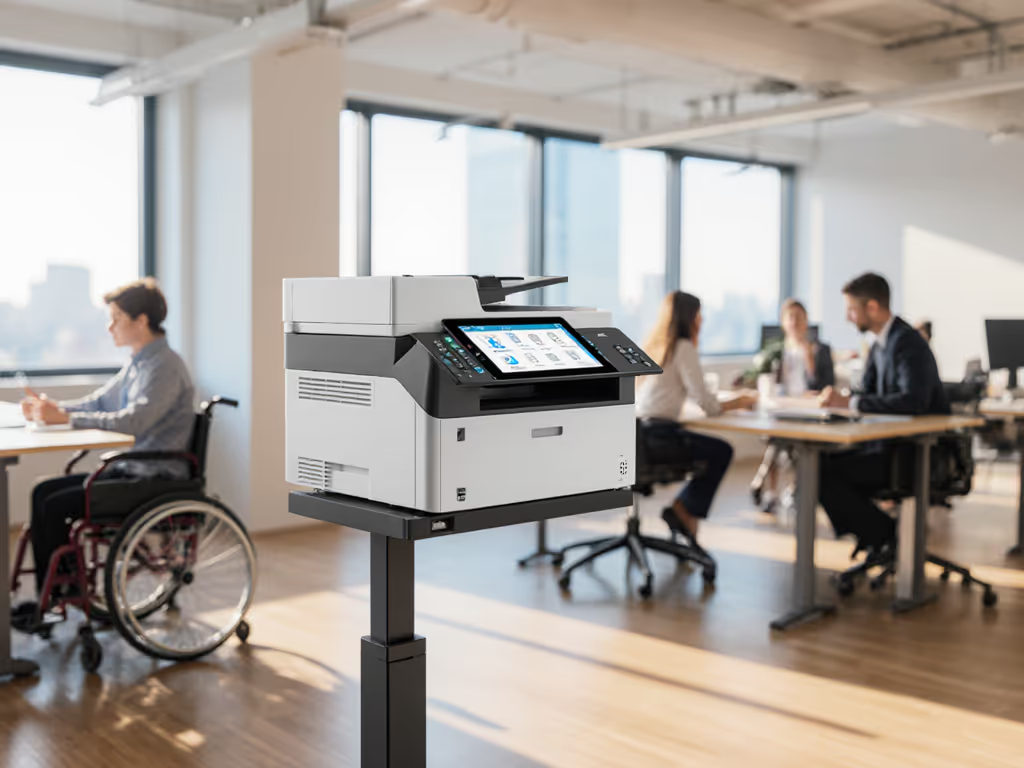
When selecting a commercial office printer, accessibility features aren't just compliance checkboxes; they're operational essentials that directly impact your helpdesk ticket volume and user productivity. The right printer accessibility features prevent common workflow bottlenecks while ensuring your entire workforce can complete print tasks independently. As a helpdesk lead who's transformed complex print processes into repeatable workflows, I've seen how thoughtful accessibility implementation reduces support calls by 30% or more (fewer tickets prove the design, not the spec sheet).
Understanding ADA Printer Compliance
The Americans with Disabilities Act (ADA) requires equal access to workplace tools, including multifunction printers. Section 508 compliance goes beyond basic functionality; it demands that technology be usable by people with various disabilities, including visual, auditory, mobility, and cognitive impairments. For your commercial office printer, this means:
- Visual accessibility: High-contrast displays, adjustable font sizes, and screen reader compatibility
- Physical accessibility: Tactile controls within reach zones, reasonable force requirements for buttons
- Auditory accessibility: Voice-guided printing options and alternative feedback methods
- Cognitive accessibility: Consistent interface patterns and intuitive workflow paths
Every step must justify itself (both for accessibility compliance and operational efficiency). Printers with thoughtful accessibility features serve all users, not just those with documented disabilities.
Step-by-Step Evaluation of Printer Accessibility Features
Step 1: Screen Assessment (Visual Accessibility)
When evaluating a commercial office printer, physically approach the device and complete this assessment: If your environment mixes Windows and macOS, review our OS compatibility guide to ensure accessibility features work consistently across platforms.
- Observe the display in typical office lighting
- Does the screen maintain readability under varied lighting conditions?
- Is there adjustable brightness/contrast as a standard feature?
- High-contrast displays should offer at least 70% contrast ratio between text and background
- Check font customization options
- Navigate to display settings: Settings > Display > Font Size
- Verify if font size can increase to at least 24-point equivalent
- Confirm the system maintains readability when zoomed
- Test screen reader compatibility
- Look for USB or Bluetooth connectivity for assistive devices
- Verify support for standard screen reader protocols (VoiceOver, JAWS, TalkBack)
- If unavailable as standard, check if the manufacturer offers an accessibility dongle
Step 2: Physical Interface Assessment
- Measure reach zones
- Stand at the typical operating position (seated or standing)
- Confirm critical controls fall between 15-48 inches from floor level
- Check if controls remain reachable from a seated wheelchair position
- Evaluate tactile controls
- Press buttons with closed eyes. Can you distinguish functions by touch alone?
- Verify tactile markers identify key controls (home, scan, copy)
- Check if buttons require no more than 5 pounds of force to activate
- Assess audio feedback
- Navigate to: Settings > Accessibility > Audio Feedback
- Confirm the printer can provide verbal confirmation of completed actions
- Check if volume is adjustable to at least 85 decibels for noisy environments
Step 3: Workflow Assessment
- Map the "scan to email" workflow (our former top helpdesk ticket)
- Time yourself completing the process with eyes closed
- Note how many steps require visual confirmation
- Identify where voice-guided printing would eliminate errors
- Create role-based presets
- For HR: Single-touch "New Hire Packet" preset with required forms
- For Facilities: "Work Order" preset with auto-scan to document management
- For HR: "Confidential" preset requiring secure release
- Validate fallback paths
- If voice guidance fails, is there a keyboard-accessible alternative?
- When displays malfunction, do physical buttons maintain core functionality?
- If network connectivity drops, can basic printing continue via USB?
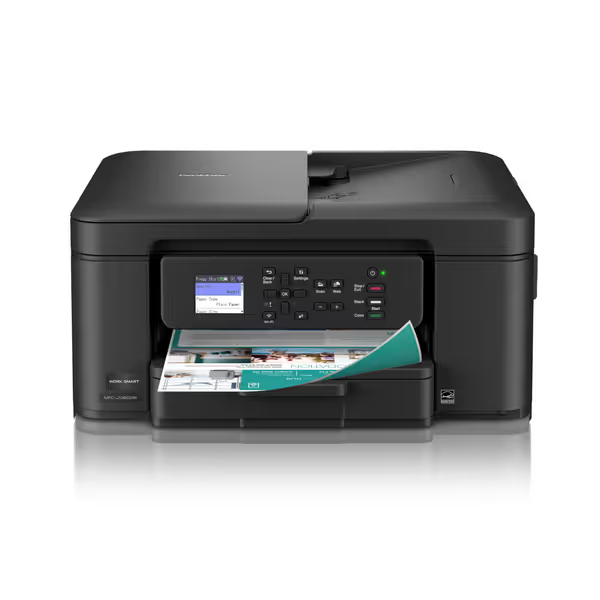
Brother Work Smart 1360 Wireless Color Inkjet All-in-One Printer
Compact, reliable all-in-one for home and home office workflows.
$109.99
Print Speed (Black)Up to 16 ppm
Print Speed (Black)Up to 16 ppm
Pros
Excellent print quality; sharp output, duplex printing.
Easy setup, especially for wireless connectivity.
Cons
Inconsistent wireless connectivity and mixed speed reports.
Functional longevity concerns reported by some users.
Customers find the printer's print quality excellent, with sharp output and the ability to print on both sides, while also appreciating its ease of setup, particularly for wireless printing. The functionality receives mixed feedback - while some say it works well, others report it stops working after two months. Customers disagree on the value for money, with some finding it good for the price while others consider it expensive. The wireless connectivity is also mixed, with some praising the WiFi feature while others report constant disconnections. Customers disagree on the print speed, with some finding it quick while others say it's slow.
Customers find the printer's print quality excellent, with sharp output and the ability to print on both sides, while also appreciating its ease of setup, particularly for wireless printing. The functionality receives mixed feedback - while some say it works well, others report it stops working after two months. Customers disagree on the value for money, with some finding it good for the price while others consider it expensive. The wireless connectivity is also mixed, with some praising the WiFi feature while others report constant disconnections. Customers disagree on the print speed, with some finding it quick while others say it's slow.
Implementation Checklist for ADA-Ready Printers
Before finalizing your printer selection, verify these critical accessibility features meet your organization's needs. Each item should directly address a potential helpdesk ticket type:
Must-Have Accessibility Features
| Feature Category | Verification Method | Common Failure Points |
|---|---|---|
| Screen reader compatibility | Connect with JAWS/NVDA; verify full menu navigation | Partial support (only home screen accessible) |
| High-contrast displays | Measure contrast ratio in typical lighting | Contrasts only adjustable via administrator menu |
| Tactile controls | Test with eyes closed; verify unique shapes/textures | Identical flat buttons with no differentiation |
| Voice-guided printing | Navigate complex workflow with audio only | Audio only available in English or basic functions |
| Keyboard navigation | Complete all functions using arrow keys/enter | Requires touch for critical functions |
Documentation Verification
Many manufacturers claim ADA compliance but lack implementation details. Also establish a process for printer firmware updates so accessibility fixes don't compromise security or uptime. Request and verify:
- Accessibility Conformance Report (ACR) using VPAT® (Voluntary Product Accessibility Template)
- Real-world testing documentation showing actual users with disabilities completing workflows
- Firmware update policy for accessibility features (will updates break existing accessibility?)
Consistent ecosystems matter, and when all your commercial office printers share the same interface language, your training investments multiply. The Brother Work Smart series demonstrates this principle with consistent menu structures across their product line, though you should verify ADA compliance against your specific requirements. If you're standardizing secure release and audit trails, review essential printer security features.
Creating Presets That Prevent Tickets
The most effective ADA compliance isn't reactive; it's built into your standard workflows. For scanning-centric teams, start with our guide to secure scanning workflows. Drawing from our experience eliminating the "can't scan to email" ticket, consider these implementation strategies:
Preset Implementation Framework
- Identify top 5 helpdesk tickets related to printing
- Track categories for 30 days before implementation
- Calculate time/cost per ticket type
- Design presets that address these issues
- For "can't find network drive" issues: Create single-button scan-to-SharePoint
- For "wrong paper size" errors: Department-specific presets with correct media
- For "confidential document left at printer": Enable secure release by default
- Implement floor coaching with micro-trainings
- Create 2-minute role-specific videos showing preset usage
- Place QR codes on printers linking to relevant training
- Train super-users in each department as first-line support
- Measure and iterate
- Track ticket reduction specifically for preset-enabled functions
- Gather user feedback on which presets get used regularly
- Retire unused presets after 90 days to reduce interface clutter
Actionable Next Steps
Rather than treating ADA compliance as a separate initiative, integrate accessibility evaluation into your standard printer procurement process. This single adjustment transforms compliance from a cost center into a productivity accelerator.
Start today by shadowing three different users (including someone with accommodation needs) completing standard print tasks. If connectivity is part of the bottleneck, use our network setup options guide to plan resilient, accessible paths. Document each step where they hesitate or require assistance. These are your preset opportunities. Then implement one department-specific preset addressing the most common issue, measuring ticket reduction over the next 30 days.
When commercial office printers work seamlessly for everyone, they stop being helpdesk liabilities and become workflow enablers. Every step must justify itself, and ADA-ready accessibility features deliver ROI through reduced support costs, increased productivity, and inclusive workflows that serve your entire workforce. The quiet in the helpdesk queue will be your most convincing metric.
Related Articles